How to Verify Your Meta Business Portfolio for WABA
A complete guide to Meta business verification: the documents you need, the steps, how long it takes, and what to do if you're rejected. Required before your WABA number can send.
Before your WhatsApp number can send on WABA, two things have to be done: connecting it to Zenziva, and getting your business verified by Meta. Verification is the gate: until it clears, you can't submit templates or send a single message, and your limits stay frozen. The two can happen in either order.
Verify your business with Meta
Verification runs at your Business Portfolio level, and Meta handles the whole review. You need full control of that portfolio, Meta's highest permission level, to start; without it, the Security Center option won't even appear. The documents Meta asks for depend on the business type you choose, here's the flow, screen by screen.
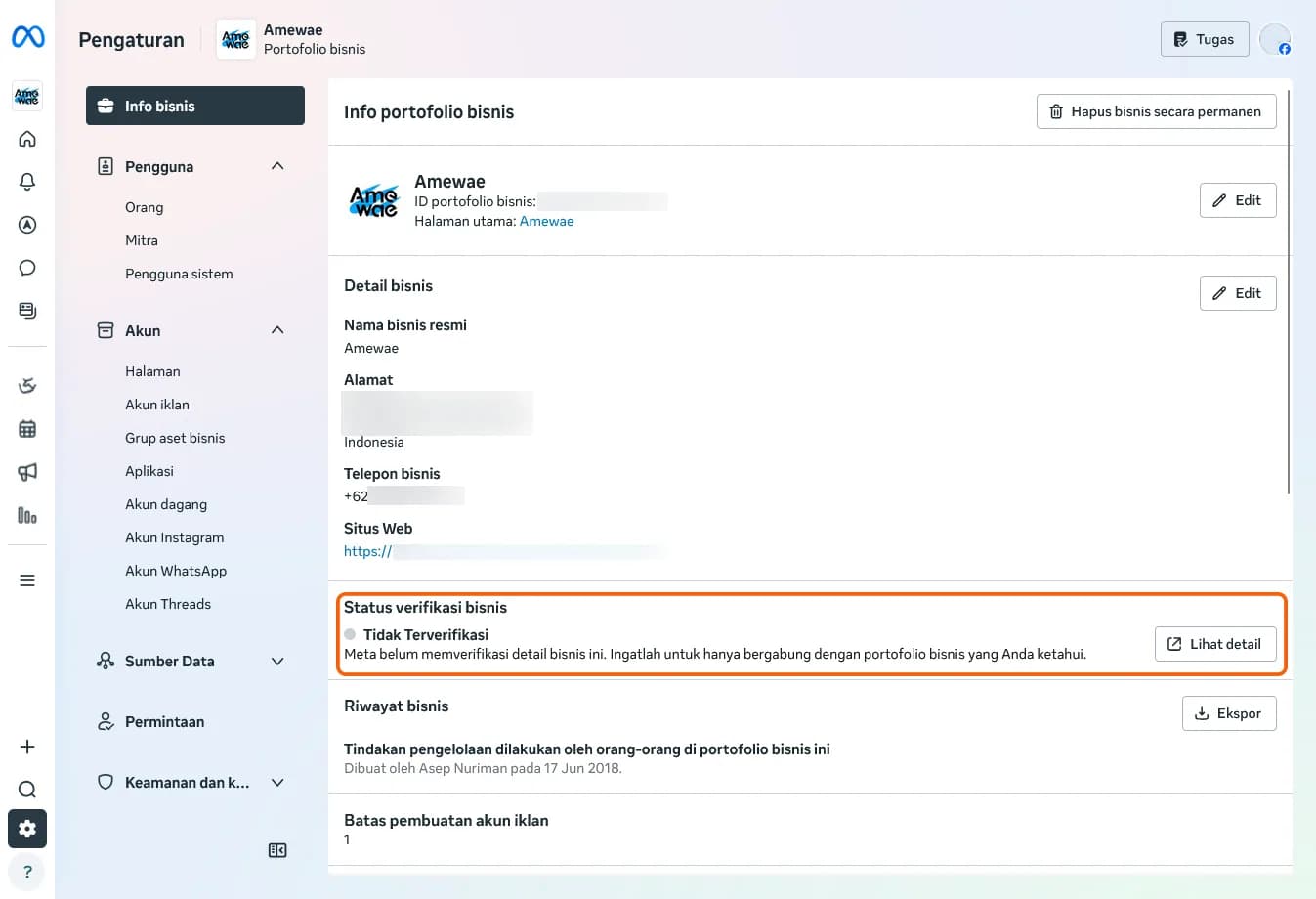
Open Settings › Business info. If you see "Business verification status: Not verified," click View details to begin.
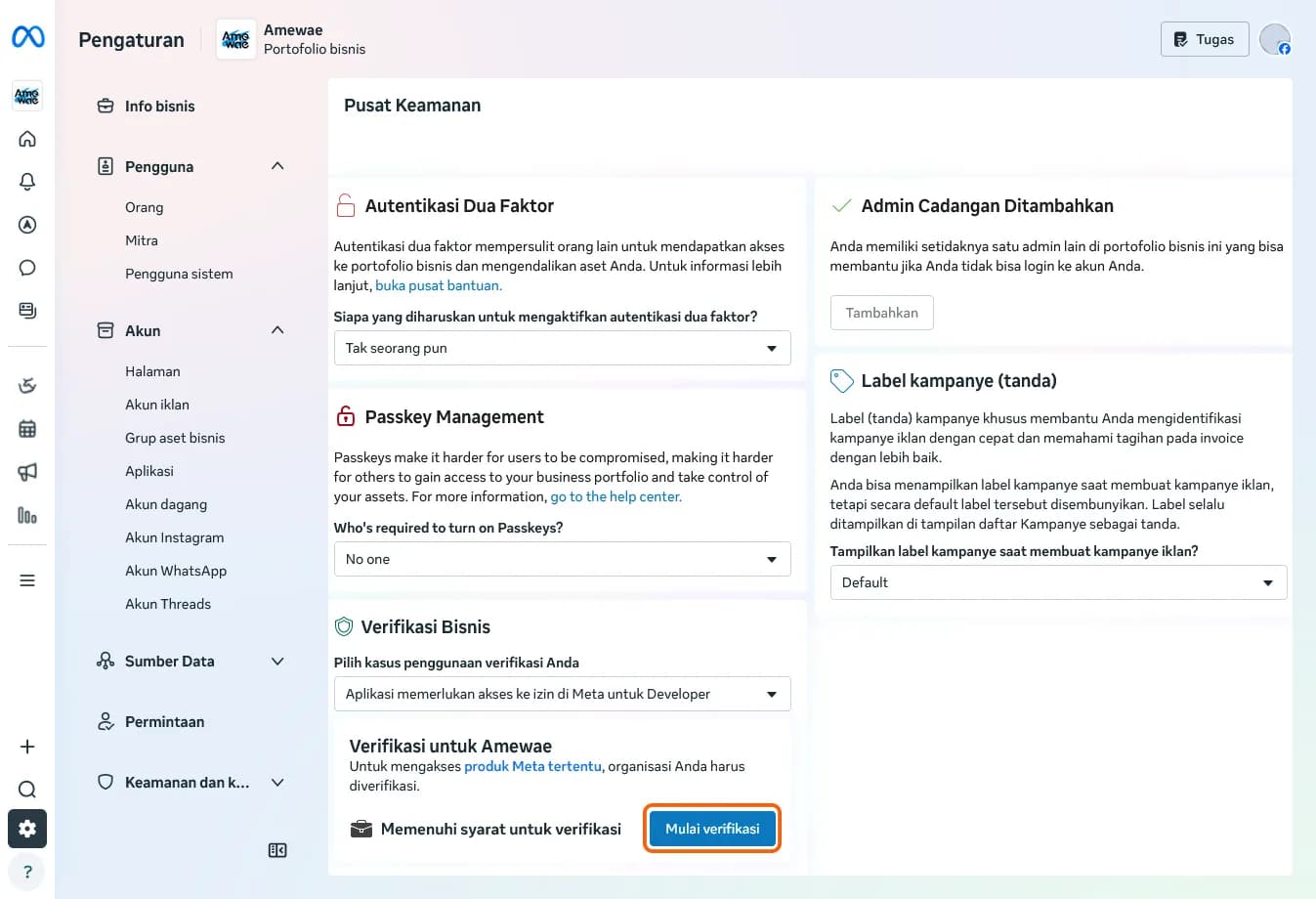
This opens the Security Center (Pusat Keamanan). Under Business verification, click Start verification. (If you see "Ineligible for verification", you don't need to complete it in Security Center, you may be notified to complete it from another platform like WhatsApp Manager).
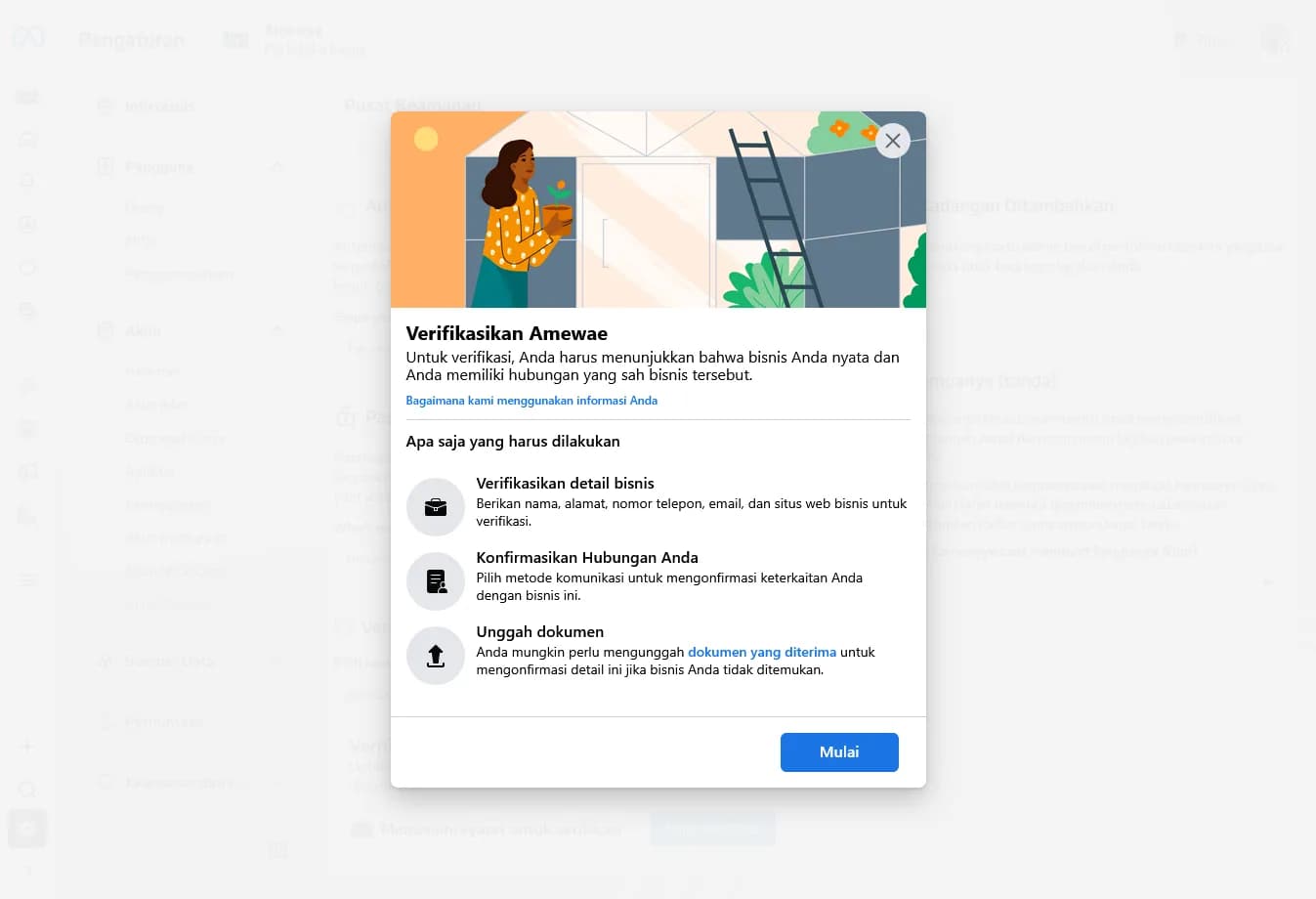
Meta previews what's ahead: verify your business details, confirm your relationship to the business, and upload a document if asked. Click Start.
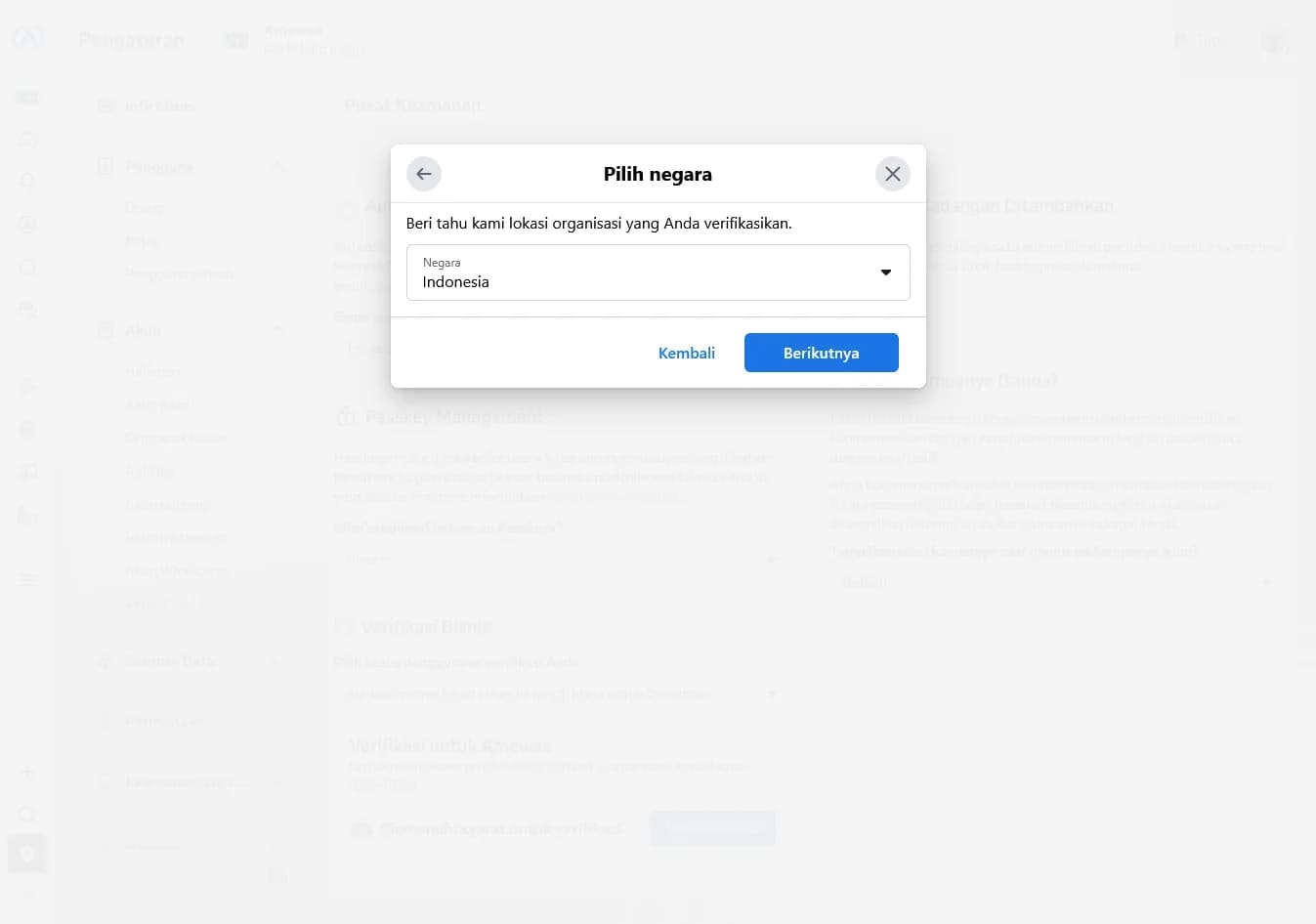
Pick the country where your organization is based, then continue.
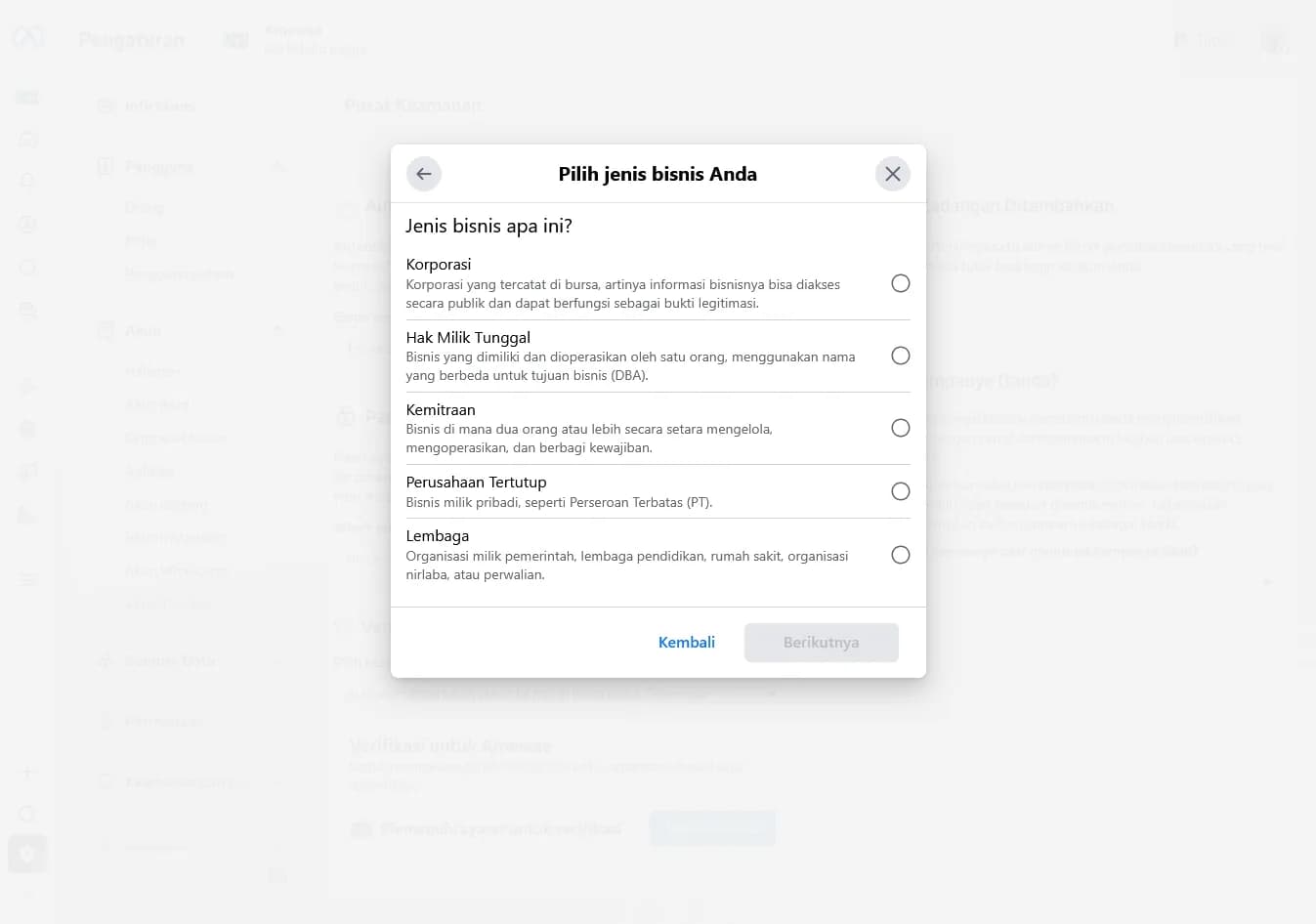
Choose your business type, Corporation, Sole proprietorship, Partnership, Privately held company (PT), or Institution. This choice decides which documents Meta needs.
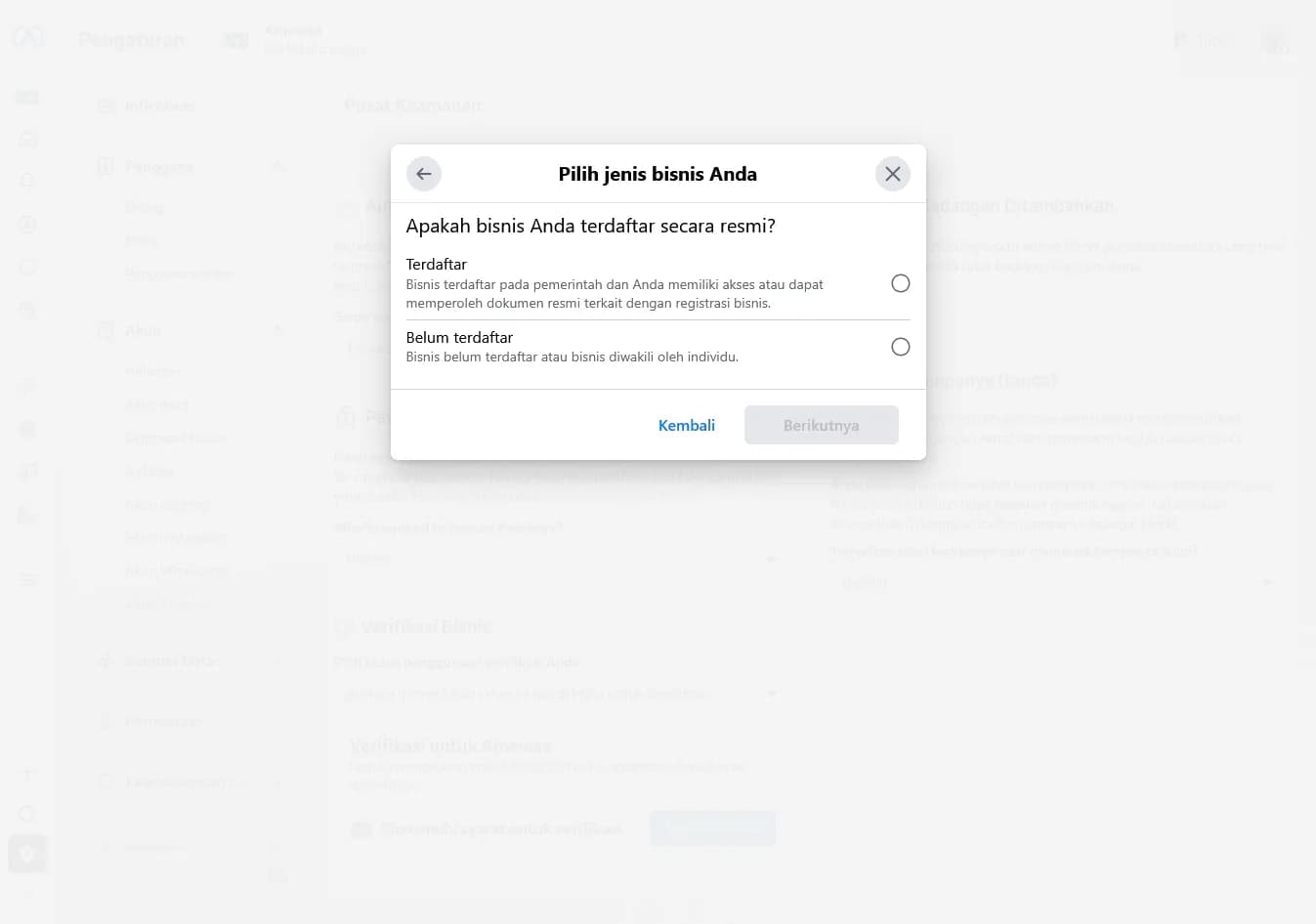
Tell Meta whether your business is officially registered. "Registered" means you hold government registration documents; "Not registered" is for individuals or businesses without them, Meta then asks for lighter proof.
From here you fill in your business details, legal name, address, business phone, website, and your registration number (NIB, NPWP, or TIN). Every detail has to match your official records exactly, and your website must load over HTTPS. If Meta can't match you automatically, it asks you to upload a document that shows your legal business name alongside your official address or phone number, current, and issued by the relevant authority. What's accepted:
- Business registration or licence document (NIB / izin usaha).
- Government-issued business tax document (NPWP / official tax notice), self-filed tax documents aren't accepted.
- Certificate or deed of establishment (Akta Pendirian).
- Business bank statement (Laporan Bank Bisnis).
- Utility bill (electricity, water, internet), accepted only to confirm your address or phone, not your legal business name, and your business name must still appear on it.
If you chose "Not registered" or a sole proprietorship, Meta verifies you as an individual instead: upload a government ID (KTP, SIM, or passport) and, if prompted, a short selfie video. It's used only to confirm your identity and is deleted within about 30 days.
Last, pick how you want to confirm your connection, email, SMS, WhatsApp, a phone call, or domain verification (adding a meta tag or DNS record to your site). Enter the code to submit. If you choose email, Meta may also ask you to prove you own your website's domain.
One thing to remember: if you edit any business detail after submitting, Meta makes you run verification again, so get the details right the first time.
Use an email on your business domain (e.g., name@yourbrand.com) rather than free providers like Gmail or Yahoo, it ties you to your website and helps Meta's automated checks. Better still, complete domain verification directly with a meta tag or DNS record; it's the strongest signal that the business is yours.
Track the status
After you submit, the status switches to "Under review" (Sedang ditinjau). The review runs on Meta's side, automated and manual checks combined, and the result also arrives by email. Your status settles on one of four outcomes:
| Status | What it means |
|---|---|
| Under review (Sedang ditinjau) | In the queue. No action needed, just wait. |
| Verified (Terverifikasi) | Approved. Your business can use WABA fully and your sending limits can climb. |
| Need more information | Meta wants another document or detail. Check your Support Inbox and respond there. |
| Not approved / Rejected | Usually a mismatch. Fix it and resubmit (see below). |
Timing varies. Many applications clear in about two business days; restricted or complex ones can take up to two weeks. If it stalls longer than that, the cause is usually a "need more information" request sitting unread in your Support Inbox, not a quiet rejection.
If the review takes longer than expected, do not resubmit documents blindly. Check your Support Inbox for requests for additional information. Resubmitting unprompted resets your position in the review queue.
If your verification gets rejected
A rejection is almost always a mismatch, not a sign your business isn't legitimate. Run through this checklist before you resubmit:
- The name or address on the document doesn't match what you typed, even punctuation matters.
- The document or ID is blurry, cropped, expired, or in an unaccepted format.
- You used a free-domain email instead of your business domain for the code.
- The phone number on the form doesn't appear on any supporting document.
- Your website fails to load, is not HTTPS-compliant, or contains broken links (error messages).
- Meta suspects false or misleading information, or an attempt to claim a business you don't own (this can result in permanent blocks).
If your verification application is rejected, you may be eligible to appeal. Check the Security Center or the platform where you began the process to learn more about your status.
The other step: connect your number to Zenziva
Verification handles the Meta side. Separately, your number has to be connected to Zenziva through Embedded Signup, once it is, your WhatsApp Account shows up inside Meta Business Suite, and it's worth confirming it sits under the right business portfolio. You can do this before or after verification; both just need to be done before you go live.
- Open Meta Business Suite → Settings › Accounts › WhatsApp Accounts.
- Find the number Zenziva just connected in the list.
- Confirm it's owned by your business portfolio and that Zenziva appears as the connected partner.
If the number isn't there, the connection didn't finish, reconnect from your Zenziva dashboard before moving on.
- Going live needs both: connect your WhatsApp Account to Zenziva and complete Meta business verification. The order is flexible, but you can't send messages or submit templates until verification clears.
- Business verification now lives in the Security Center, pick your business type, and the required documents follow from it.
- The blue tick is a separate, optional step that comes later, verification alone doesn't grant it.
After verification: scale up, then consider the blue tick
Verified and connected, your number can start sending and climb the messaging tiers as long as your quality holds up. When your brand is well-known enough, the blue tick (Official Business Account) becomes a possibility, we cover exactly how that works, and what notability really means, in our full blue-tick guide.
Official WhatsApp Business API.
Trusted infrastructure for industrial-scale communication, with eligibility for the official Blue Tick from Meta.
Register WABA Now →